7 Steps to Create Your Dream YouTube Channel and Grow Your Audience in 2026
I still remember sitting in front of my laptop three years ago, wondering if I had what it takes to create a YouTube channel. The idea felt overwhelming because I didn't know where to start, what equipment I needed, or how to even upload my first video. But here's what I learned after finally taking the leap: understanding how to create YouTube channel is far simpler than most people think, and you don't need thousands of dollars or professional filmmaking experience to get started. What you do need is clarity on the process, commitment to consistency, and willingness to learn as you grow.
In this comprehensive guide, I'm going to walk you through exactly how to start a YouTube channel from absolute scratch. Whether you're hoping to share your expertise, build a business, or simply express your creativity, this article will give you the complete roadmap for YouTube channel creation. We'll cover everything from the initial account registration guide through channel customization techniques, video description optimization, proper tag usage, and profile setup that attracts subscribers. By the time you finish reading, you'll know precisely how to make a YouTube channel that reflects your vision and has the foundation to attract genuine subscribers who care about your content.
If you are interested in the youtube tips click on it.
Understanding YouTube Channel Creation Before You Start
Before we dive into the technical steps of how to create YouTube channel, I want you to think about your purpose. Starting a YouTube presence without clarity about why you're doing it leads to burnout and inconsistency. When I launched my channel, I spent a week thinking about what I genuinely wanted to share and who I wanted to reach. This clarity became my compass during the challenging early months when views were low and motivation was hard to find.
YouTube has evolved dramatically over the past few years.
The platform now hosts creators in virtually every niche imaginable, from cooking and gaming to financial advice and meditation. This diversity means there's absolutely room for your voice, but it also means you need to approach creating a YouTube channel strategically. The creators who succeed aren't necessarily the most talented or the ones with expensive cameras. They're the ones who understand their audience, deliver consistent value, and stay committed even when growth feels slow.
Choosing Your Niche and Content Direction
Niche selection is honestly the most important decision you'll make when building video platform presence. I see so many new creators trying to cover everything, thinking broader appeal means more subscribers. In reality, the opposite is true. When you focus on a specific topic or audience, you become the go-to resource for that community, which leads to loyal subscribers who actually watch your videos.
Start by listing topics you could talk about for hours without getting bored. Then narrow that list by considering what people actually search for and what problems you can solve. The sweet spot is where your passion meets audience demand. I chose my niche by searching YouTube for topics I loved and noticing what questions appeared repeatedly in comments. Those questions became my content ideas, and answering them positioned me as helpful rather than just another creator.
Step One: Creating Your YouTube Channel Account
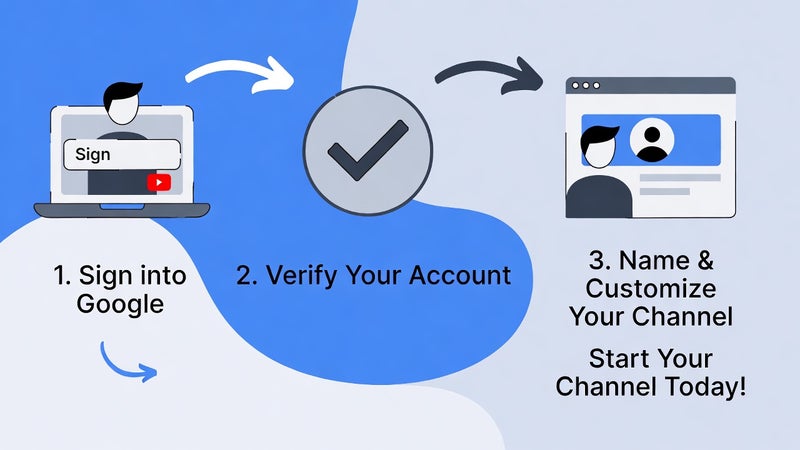
Now let's get into the practical process of how to create a YouTube channel. The technical setup takes less than thirty minutes, though I recommend spending additional time on customization to make a strong first impression. Every detail matters when you're establishing online video identity.
Account Registration Process
To start YouTube channel, you'll first need a Google account. If you already have Gmail, you can use that, though I created a separate Google account specifically for my channel to keep personal and creator activities separate. Visit YouTube.com and sign in with your Google account. Click on your profile icon in the top right corner, then select "Create a channel."
You'll see two options: use your Google account name or create a custom channel name. I strongly recommend choosing a custom name because it gives you flexibility if you ever want to rebrand or if multiple people manage the channel. Click "Use a custom name" and enter your desired channel name.
The channel name you choose should be memorable, relevant to your content, and easy to spell. Avoid numbers and special characters that make it hard for people to find you. Think about how it sounds when spoken aloud, as people might hear about your channel through word of mouth or podcasts. I changed my channel name twice before settling on something that felt right, so don't stress about making it perfect immediately.
Setting Up Your Brand Account
After creating your channel, YouTube automatically creates a Brand Account for you. This separates your personal Google identity from your channel, which is particularly useful if you plan to have multiple people managing the channel or want to keep your personal information private. You can manage permissions through YouTube Studio settings, adding managers or editors without sharing your personal Google account credentials.
The Brand Account also allows you to create multiple channels under one Google account, which is helpful if you later decide to start a second channel in a different niche. I didn't realize this benefit initially, but when I wanted to launch a second channel for a completely different topic, having the Brand Account structure already in place made the process seamless.
Step Two: Profile Optimization Methods That Attract Subscribers
After creating your account, the next crucial step in how to make YouTube channel successful is optimizing your profile. This is where many beginners rush through, but I'm telling you from experience that taking time here pays dividends later. Your channel page is like your storefront, and first impressions absolutely matter.
Uploading Your Profile Picture
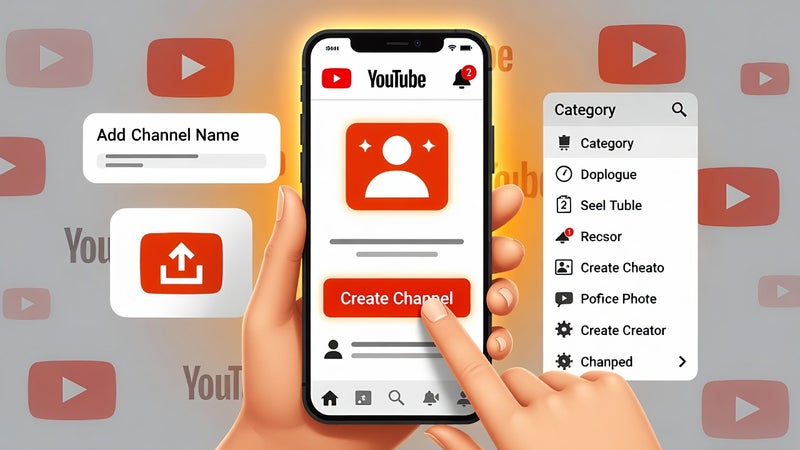
Your profile picture appears next to every comment you make and in search results, so choose something clear and recognizable. The image should be 800x800 pixels and under 4MB. If you're building a personal brand and showing your face in videos, use a friendly, professional headshot with good lighting. Make sure your face fills most of the frame so it's visible even at small sizes.
If your channel focuses on a topic rather than you personally, create a simple logo that communicates your niche at a glance. I used Canva to design mine, choosing colors and symbols that relate to my content area. Whatever you choose, ensure it looks clear when shrunk down to thumbnail size because that's how most people will see it.
Designing Your Channel Banner
Your channel banner is the large image at the top of your channel page. The recommended size is 2560x1440 pixels, but different devices crop this differently. The safe area that displays on all devices is 1546x423 pixels in the center, so keep any important text or images within that zone.
I use my banner to communicate three things: what my channel is about, when I upload new videos, and a simple call to action like "Subscribe for weekly tutorials." Keep text minimal and use large, readable fonts. Many viewers access YouTube on mobile where small text becomes completely unreadable.
The banner design should complement your overall channel aesthetic. I chose colors that match my thumbnails and profile picture, creating a cohesive look that feels intentional rather than thrown together. You can create professional-looking banners for free using Canva, which has YouTube-specific templates with the correct dimensions already set up.
Writing Your Channel Description
The "About" section is where you explain your channel's purpose and help YouTube understand what your content is about. This description should be 100 to 200 words written in a conversational tone. I structure mine with three elements: what the channel covers, who it's for, and what viewers can expect.
Include relevant keywords naturally throughout your description, but write for humans first and search engines second. I mention my main topic three to four times using different phrasing. For example, if my channel is about baking, I might say "baking tutorials," "learn to bake," and "home baking tips" rather than repeating "baking" robotically.
Add your upload schedule if you have one committed, like "New videos every Tuesday and Friday." Include an email address for business inquiries at the bottom. I also add links to my social media accounts, though only the ones I actually maintain and check regularly.
Step Three: Customizing Your Channel Layout
Once your basic profile is complete, customize how your channel page displays content to visitors. Access these settings through YouTube Studio by clicking "Customization" in the left sidebar. This area lets you control what people see when they land on your channel.
Featured Sections and Playlists
The layout tab lets you choose what appears on your channel homepage. I recommend featuring your most popular uploads, recent uploads, and created playlists. This gives new visitors multiple entry points into your content. If someone discovers your channel, they can watch your most successful video, check out your latest content, or explore a specific topic through a playlist.
Create at least three playlists before you publish your channel, even if you haven't uploaded videos yet. These can be collections of other creators' videos in your niche that you find valuable. This shows you're engaged in your topic area and gives visitors something to watch even before you've published content. Once you start uploading, replace these with playlists of your own videos organized by topic or series.
The channel trailer is crucial for converting visitors into subscribers. This should be a 30 to 60 second video that clearly explains what your channel offers and why someone should subscribe. I created mine after uploading five regular videos so I had content to pull clips from, but you can create a simple talking-head trailer explaining your channel concept if you're just starting.
Step Four: Understanding Video Descriptions and Optimization
Learning how to create YouTube channel is incomplete without understanding how to optimize individual videos for discovery. The video description is one of the most underutilized tools for growing your channel. Many creators write one sentence and move on, missing a huge opportunity for both viewers and the YouTube algorithm.
Writing Effective Video Descriptions
Your video description should be at least 200 words and ideally 300 to 500 words. The first two to three sentences are critical because they appear in search results and above the "Show More" button. I use this space to deliver on the promise of my title, clearly stating what the video covers and what value viewers will get.
The first 150 characters should include your primary keyword naturally. For example, if my video is about "how to make sourdough bread," my opening sentence might be: "In this tutorial, I'll show you exactly how to make sourdough bread from scratch, even if you've never baked before." This immediately tells both viewers and YouTube what the video is about.
After the opening, I expand with more detail about what's covered, breaking it into natural paragraphs for readability. Include timestamps for different sections of your video, which viewers appreciate and which YouTube sometimes uses to create automatic chapters. I format these like "0:00 Introduction, 2:15 Ingredients needed, 5:30 Mixing the dough" and so on.
Strategic Link Placement
The description is where you include relevant links, but be strategic about what you include and in what order. I always put my most important link first, whether that's a related video, a product I mention, or a free resource I'm offering. YouTube makes the first link clickable in the description preview, so prioritize accordingly.
Include links to related videos on your channel to keep viewers watching your content. I typically add two to three related video links with brief descriptions of what each covers. This creates a web of connections between your videos that encourages binge-watching and signals to YouTube that your content is interconnected and valuable.
Social media links go toward the bottom of the description. Only include platforms you actually use and check regularly. There's no point directing people to an Instagram you haven't updated in six months. I also include a business email address and any relevant affiliate disclosures if I'm recommending products.
Step Five: Mastering Tags for Better Discoverability
Tags help YouTube understand what your video is about and when to suggest it to viewers. While tags are less important than they used to be, they still play a role in video SEO essentials, particularly for smaller channels trying to gain traction.
How to Choose Effective Tags
Start with your exact title as your first tag. If my video is titled "How to Make Sourdough Bread for Beginners," that entire phrase becomes my first tag. Then add variations and related phrases that people might search for, like "sourdough bread tutorial," "beginner bread baking," "homemade sourdough," and "sourdough starter guide."
I use a mix of broad and specific tags. Broad tags like "baking" or "bread" help YouTube categorize your content generally. Specific tags like "sourdough bread troubleshooting" or "no-knead sourdough method" target particular search queries. The specific tags have less competition, giving you a better chance of ranking when someone searches those exact phrases.
Aim for 5 to 10 highly relevant tags rather than stuffing in 30 barely related ones. YouTube limits you to 500 characters total for tags, but you don't need to use all of them. I focus on quality over quantity, choosing tags that accurately describe my content and match what people in my niche actually search for.
Tag Research Methods
To find good tags, I start by typing my video topic into YouTube's search bar and noting the autocomplete suggestions. These are actual phrases people are searching for. I also look at the tags successful videos in my niche use by viewing their page source code or using a browser extension designed for YouTube tag research.
Check the "Searches related to" section at the bottom of YouTube search results for additional tag ideas. These related searches often reveal specific angles or questions people have about your topic. If I'm making a sourdough video and see "sourdough bread without dutch oven" as a related search, that becomes both a potential tag and possibly a future video idea.
Don't copy someone else's tags exactly. Use them as inspiration, but make sure every tag you use genuinely applies to your content. Misleading tags might get your video shown to the wrong audience, leading to quick exits that hurt your overall performance in the algorithm.
Step Six: Creating Your First Videos
Understanding how to start a YouTube channel means eventually putting yourself out there with actual content. Your first video doesn't need to be perfect, but it should be intentional. I recommend planning your first five videos before filming anything so you launch with momentum rather than struggling to figure out what to create next.
Planning Content That Serves Your Audience
Start with videos that answer common questions in your niche. I researched what people were asking by reading comments on popular videos, checking Reddit discussions, and looking at Google autocomplete suggestions. These questions became my content roadmap because I knew people were actively looking for answers.
Your first video doesn't need to be an introduction to yourself or your channel unless you're already bringing an audience from another platform. Most viewers skip "welcome to my channel" videos unless they're already fans. Instead, make your first upload a valuable piece of content that demonstrates what your channel offers.
Script or outline your videos before filming. I don't memorize scripts word-for-word because that sounds robotic, but I outline key points I want to cover. This keeps me focused and prevents rambling, which is particularly important when you're nervous on camera. A ten-minute video might have an outline with five to seven main points, each with a few supporting details.
Equipment You Actually Need
Your smartphone is good enough to start. Modern phones shoot in high definition, and while the quality won't match professional cameras, it's absolutely sufficient for YouTube. What matters more is stable footage, so invest in a cheap tripod or phone holder before buying an expensive camera.
Audio quality is more important than video quality. Viewers will tolerate okay video if the audio is clear, but they'll leave immediately if they can't hear you properly. I started with a twenty-dollar lapel microphone that plugged into my phone, which dramatically improved my production quality. As you grow, you can upgrade to better microphones, but start with something affordable that improves your current setup.
Lighting transforms your videos from amateur to professional-looking. I filmed near windows during daytime for free natural light, using white poster boards as reflectors to fill in shadows. A simple ring light costs around thirty to fifty pounds and provides consistent lighting regardless of time of day or weather. Good lighting makes you look more professional and makes your videos more enjoyable to watch.
Step Seven: Publishing and Promoting Your Content
After creating and editing your video, the publishing process is straightforward but the details matter for discoverability. How you upload and promote your content significantly impacts whether anyone actually finds and watches it.
The Upload Process
In YouTube Studio, click the camera icon with a plus sign and select "Upload video." While your file uploads, you'll fill in all the optimization details we've discussed. Your title should include your primary keyword naturally while being compelling enough to make people want to click. I aim for 60 characters or less so the full title displays in search results without being cut off.
Choose a thumbnail before you publish. YouTube auto-generates three options from your video, but these are rarely the optimal choice. I create custom thumbnails using Canva, following a consistent style that makes my videos recognizable. Include a clear image, minimal text in large font, and contrasting colors that stand out in search results and suggested videos.
Select the appropriate playlist for your video, which helps organize your content and encourages viewers to watch multiple videos. Set your video as "Public" when you're ready to publish, though you can schedule it for a specific date and time if you prefer. I publish on consistent days and times so my subscribers know when to expect new content.
Initial Promotion Strategies
Share your video on social media, but do it strategically rather than spamming every platform. I focus on communities where my target audience actually spends time. If you're in a niche Facebook group or Reddit community, share your video when it genuinely adds value to a conversation, not just to get views.
Engage with comments in the first few hours after publishing. YouTube pays attention to early engagement as a signal of video quality. I respond to every comment in the first day, which encourages more discussion and shows viewers I'm active and appreciate their input. This interaction helps build community around your channel.
Create end screens that suggest your next video and include a subscribe button. About 15 percent of my subscribers come from end screens, proving that people who enjoyed one video are often ready to commit if you give them a clear next step. YouTube Studio lets you set default end screen elements, saving time on every upload.
Frequently Asked Questions
How to create YouTube channel on mobile phone?
You can create a YouTube channel directly from the YouTube mobile app. Open the app, tap your profile icon, select "Your channel," and follow the prompts to create your channel. However, I recommend using a desktop computer for initial setup and customization because it's easier to upload banner images, write descriptions, and organize playlists on a larger screen. You can always manage your channel from mobile after the initial setup is complete.
Do I need 1000 subscribers to start a YouTube channel?
No, you can start YouTube channel with zero subscribers. The 1,000 subscriber requirement only applies to monetization through the YouTube Partner Program for earning ad revenue. You can create content, build an audience, and even earn money through other means like affiliate marketing or sponsorships long before hitting that threshold. I had my channel for seven months before reaching monetization eligibility, but I was still growing and learning during that time.
How long does it take to set up YouTube channel properly?
The basic account creation takes about 10 to 15 minutes. However, properly optimizing your profile with custom banner, description, playlists, and planning your first few videos takes several hours spread over a few days. I recommend spending a weekend on initial setup rather than rushing through it. Taking time upfront to do things right means you won't need to completely overhaul everything later when you have an audience watching.
What should I include in YouTube video description?
Your description should be 200 to 500 words starting with your primary keyword in the first sentence. Include a detailed summary of what the video covers, timestamps for different sections, links to related videos on your channel, social media links, and any relevant product links or resources mentioned in the video. The first 150 characters are most important because they appear in search results and above the "Show More" button.
How many tags should I use for YouTube videos?
Use 5 to 10 highly relevant tags rather than trying to max out the 500-character limit. Your first tag should be your exact video title, followed by variations of your main keyword and related search phrases. Quality matters more than quantity with tags. Focus on phrases that accurately describe your content and match what people in your niche actually search for rather than stuffing in barely related tags.
Can I change my YouTube channel name after creating it?
Yes, you can change your channel name at any time through YouTube Studio settings. However, I recommend thinking carefully before making changes, especially once you've built an audience. Frequent name changes can confuse subscribers and hurt your branding. If you do need to change it, announce it to your audience in a video and community post so they understand why you're rebranding.
Should I make my first video an introduction to my channel?
I recommend making your first video valuable content that solves a problem or answers a question in your niche rather than a channel introduction. Most viewers skip introduction videos unless they're already fans of the creator. Your first video should demonstrate the value you provide and give people a reason to subscribe. You can always add a channel trailer later that serves as an introduction for new visitors to your channel page.
Moving Forward with Your YouTube Journey
You now have everything you need to understand how to create YouTube channel and set it up for growth. The knowledge is valuable, but action is what separates dreamers from creators. I encourage you to complete the account registration today, spend tomorrow working on your profile optimization, and start planning your first video content this week.
Remember that every successful creator you admire started exactly where you are now, uncertain and inexperienced but willing to begin anyway. Your first videos will probably make you cringe when you look back at them in a year, and that's actually a good sign because it means you've grown. I still have my first video published as a reminder of how far I've come.
The YouTube landscape continues evolving, but the fundamentals remain constant: create valuable content, optimize properly with good descriptions and tags, understand your audience, and show up consistently. As you build your channel, stay curious about what works, be willing to adapt your approach based on your analytics, and most importantly, enjoy the process of sharing your perspective with the world.
Your unique voice and experiences matter, and there are people searching right now for exactly what you have to offer. So take what you've learned about how to make a YouTube channel, add your own creativity and passion, and start building something you'll be proud of. The sooner you start, the sooner you'll look back amazed at how far you've come.